Zhadi

Surround-view recording for BYD head units

The four cameras your car already has can do three more things

Four-channel drive recording · Parking Guard · Digital side mirrors

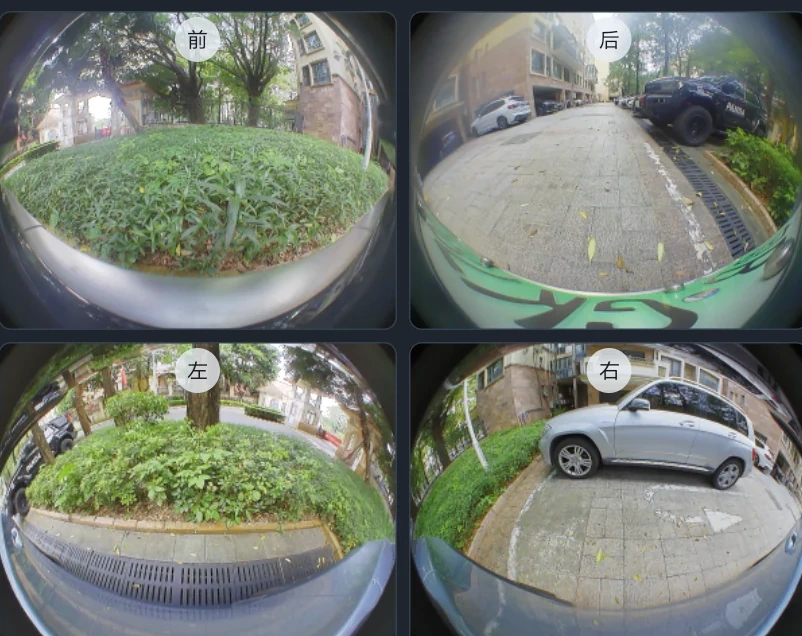
Zhadi is an app that runs on your BYD head unit. It adds no hardware and taps no wires — it uses the four surround-view cameras the car already has (front, rear, left, and right).

  • Four channelsFront, rear, and both sides
  • Still watchingRecords while parked
  • Mirrors on the clusterSignal and they appear

New in v1.2.3: TF card / USB storage, Event AI Check, and Recent triggers.

Both side mirror views displayed together on a BYD instrument cluster

Signal or shift into Reverse, and the side views appear on the cluster — your eyes stay on the road

01

While driving

Four channels record at once, one-minute files with loop overwrite

02

After you park

It keeps watching. Paint zones; movement leaves a clip, and AI can review the trigger

03

Signal / Reverse

The side-mirror views appear on the instrument cluster

Four highlights

Four things you notice right after installing

The cluster becomes a side mirror

Signal left and the left rear view appears in the left strip of the cluster. Signal right and the right view appears. Shift into Reverse and both show at once. Flick the stalk and you can tell whether it works.

No turning your head to the center screen. Your eyes stay ahead, and you still know what is beside you.
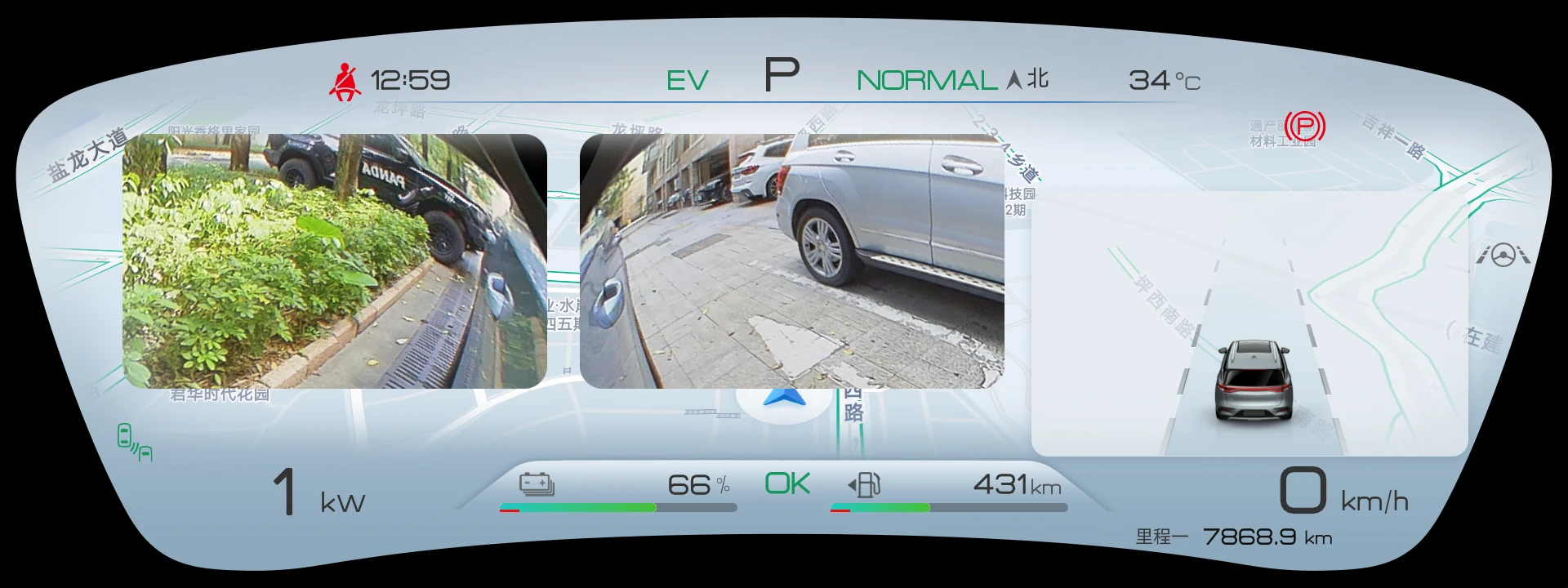
The cluster becomes a side mirror

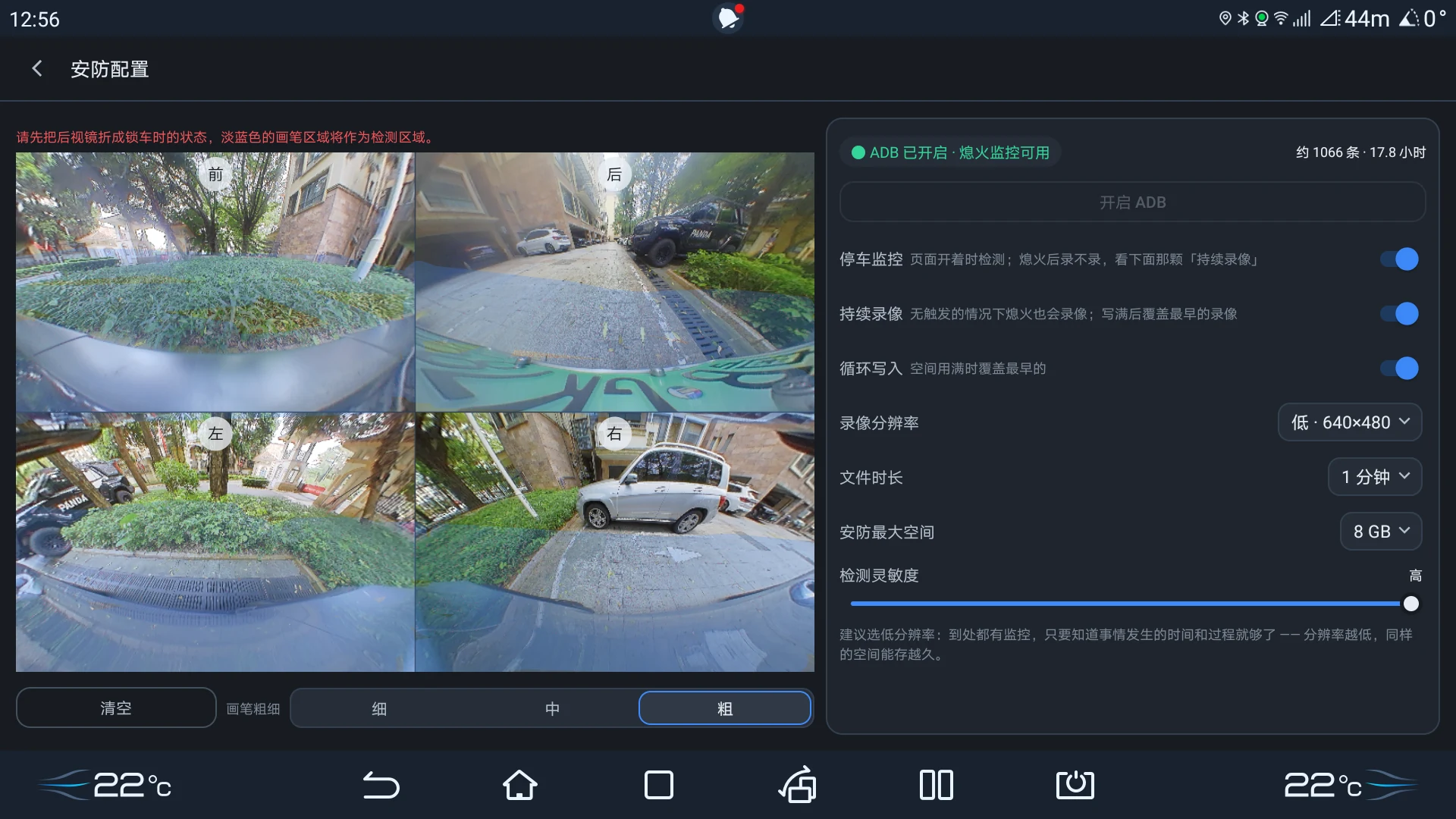
It keeps watching after you park

Parking Guard keeps recording after the car is off. Paint detection zones on the live view; only movement inside a zone leaves a clip. With Event AI Check on, it reviews five seconds either side of the trigger on that channel.

Park overnight and review the clips in the morning. Parking events are grouped separately, and you can filter to AI-reviewed events. The model is not downloaded until you turn the switch on.

It keeps watching after you park

Four channels record together — playback is the raw frame

While driving, all four cameras record at once in full-resolution color. Playback does not re-stitch or change the view — what was recorded is what you see.

Timestamp and vehicle status are burned into the frame. Clips with a trigger are marked “Triggered”, so you do not have to scan from the beginning.

Four channels record together — playback is the raw frame

No add-ons, no wiring

It uses the car’s four surround-view cameras and needs no root. Once installed, every setting is a tap away on the head unit’s touchscreen.

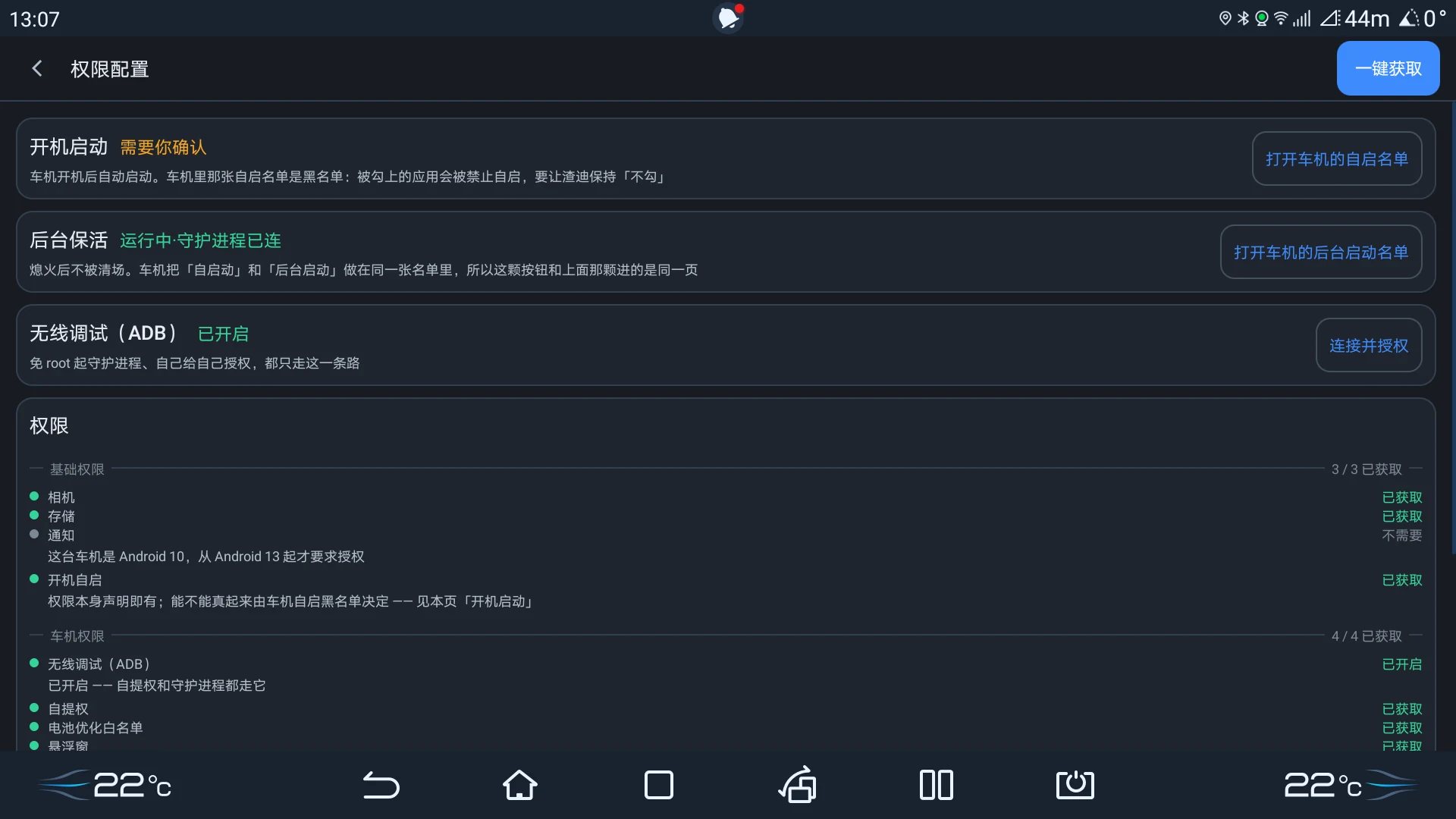
Open the Permissions page and every requirement — and every non-requirement — is explained.

No add-ons, no wiring

New in this version

What else this release adds

No new car, no new hardware — just what a software update brings.

Event AI Check

Zone changes trigger first. When enabled, AI reviews only five seconds either side of the trigger on that channel, and the verdict appears at the lower left of the Parking Guard page. Off by default; the model does not run otherwise.

TF card / USB storage

Choose external storage for drive and parking clips. USB drives carry no quota; when space runs low, the oldest USB clips go first, then the internal drive is used.

Recent triggers

The Parking Guard page keeps the last three 5-second trigger clips, so you can see what triggered and what the AI reported without leaving the page. They are cleared when you leave.

Status light

Blue = recording to the TF card. Purple = recording to internal storage. Amber = the daemon is online but not recording. Red = not connected. One glance tells you whether it is working.

Vehicle info in one place

Battery summary (SOC / SOH / cell voltage / temperature), nine ultrasonic radar channels, and steering angle now live on one Vehicle Info page.

Better cluster casting

Cast album art, track title, and lyrics to the cluster — or open a head-unit app directly on that screen.

The head unit also has a built-in emulator; install Zhadi Pad on your phone and use it as a Bluetooth controller. The download is on the Downloads page; we do not cover the emulator here.

Four-channel drive recording

One-minute files, loop overwrite, nothing to manage

Recording starts automatically when you drive, with front, rear, left, and right recording at once. It records in full-resolution color, and you can choose 15 or 25 fps. If you need more room, plug in a TF card or USB drive.
Live preview · Quad
Live preview · Quad
Recording
Starts automatically while driving
Loop recording
Overwrites the oldest clip when full
Frame rate
15 / 25 fps
Resolution
Full-resolution color (fixed)
Clip length
1 minute
Drive quota · Internal
1 / 2 / 4 / 8 GB
Drive quota · TF card
0 / 1 / 2 / 4 / 8 / 16 GB (0 = do not use the card)
Drive quota · USB
No quota; when less than 1 GB remains, the oldest USB clips are deleted first

The right column is the live preview — quad view only (front / rear / left / right). Check all four angles before you drive.

TF cards and USB drives work as soon as they are plugged in. The internal drive and the TF card can each have a quota; USB drives carry no quota — when less than 1 GB remains, the oldest USB clips go first, and only then does it fall back to internal storage.

Parking guard

Switch off, lock up, walk away. The car is still watching.

Parking Guard keeps recording after you switch off. Paint detection zones on the live view — only changes inside a zone trigger a clip. With Event AI Check on, it reviews five seconds either side of the trigger on that channel and tells you what it saw.

Parking clips accumulated

~283 clips · 4.7 hours

Parking Guard
Master switch: record after the car is off or not
Continuous recording
Records even without a trigger; overwrites the oldest when full
Loop recording
Overwrites the oldest clip when full
Frame rate
15 / 25 fps
Parking quota · Internal
2 / 4 / 8 / 16 GB
Parking quota · TF card
0 / 2 / 4 / 8 / 16 GB (0 = do not use the card)
Detection sensitivity
Low / Medium / High
Event AI Check
Off by default; reviews five seconds either side of the trigger on that channel
Parking guard

The red line at the top of the screenshot is the page’s own instruction. The red box at the lower left is the AI verdict for this trigger — only the channel that triggered was reviewed; it does not run the rest of the time. Which zones should you paint? Just the areas you care about; you do not need to cover the whole view, because too many zones cause false triggers.

Event AI Check is off by default. Turning it on downloads a model of about 4.7 MB once. After that it stays idle until a zone triggers, then reviews five seconds either side on that channel; the verdict appears at the lower left, and Recent triggers keeps the last three 5-second clips while the page is open (they are cleared when you leave). AI can miss or misclassify things; it is an extra layer of context, not a replacement for security.

Digital side mirrors · The headline feature

Flick the indicator, and the cluster becomes a mirror

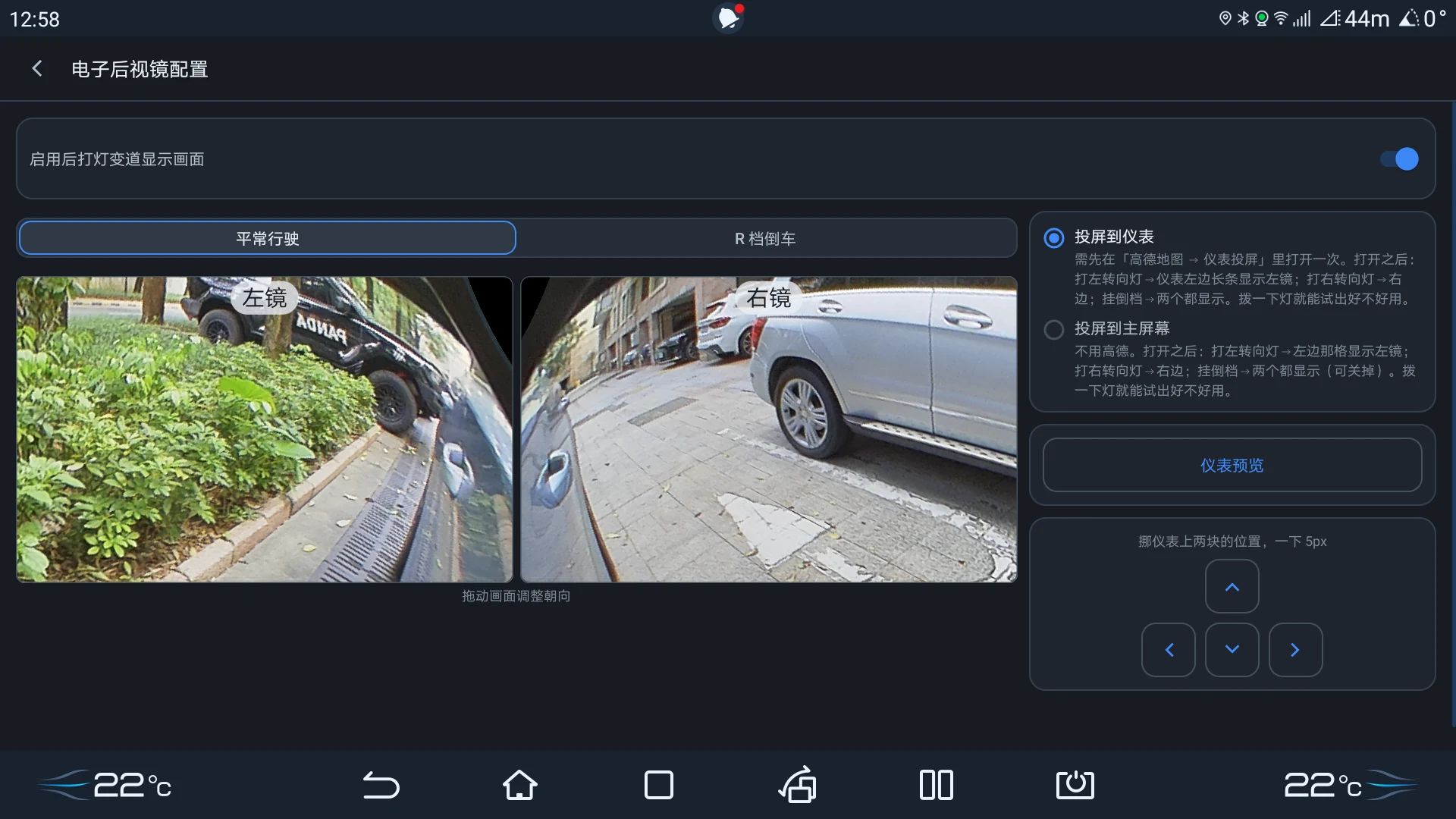
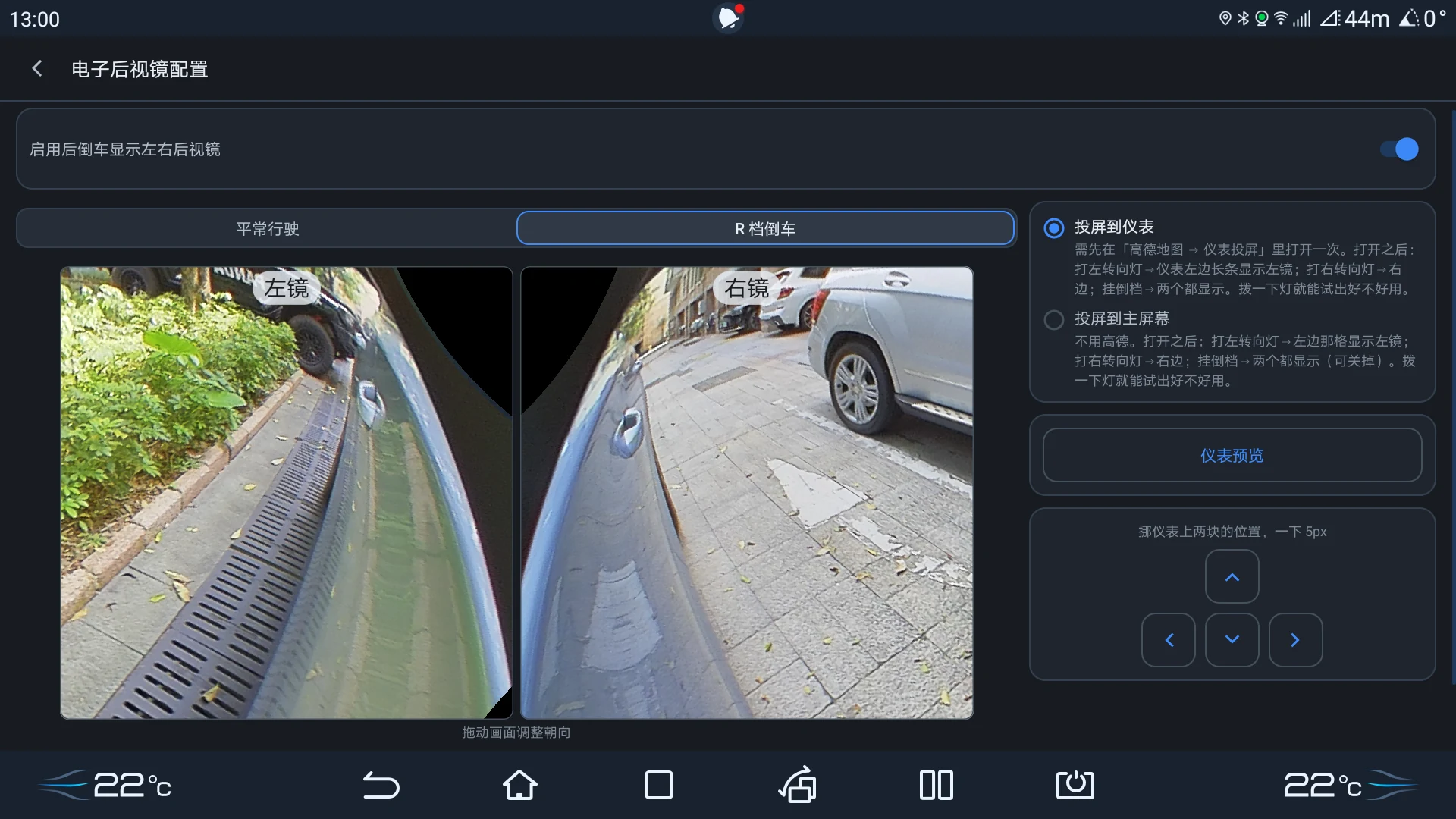
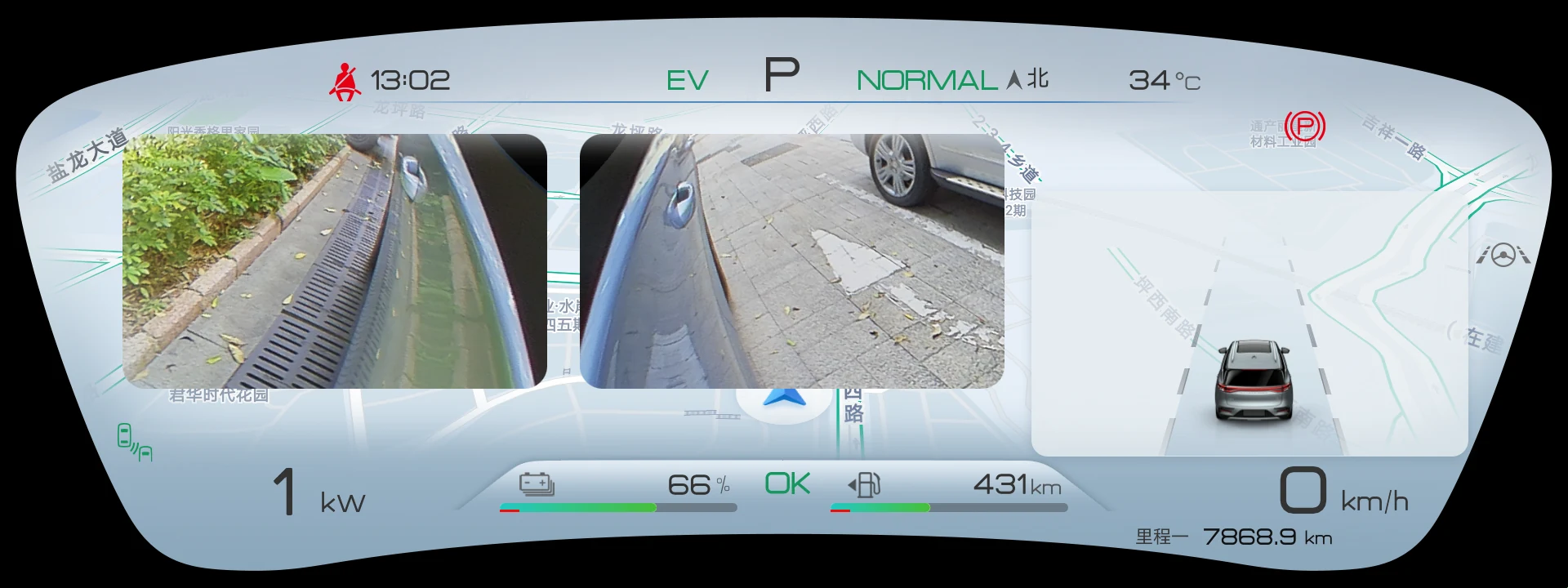
Above is how you set it on the center screen; below is what it actually looks like on the cluster. Those two images are the whole argument. Normal driving and Reverse are independent scenes, each with its own switch and its own view direction.
Scene 01 · Normal drivingTrigger: Signal to change lanes · View: Rear three-quarter view · Used to: know whether a car is beside you
Digital side mirror settings · Normal driving
Center screen · Settings — top switch “Show the view when you signal to change lanes”
After casting ↓
Both side mirror views on the instrument cluster · Normal driving
Cluster · What you actually see
Scene 02 · ReverseTrigger: Shift into Reverse · View: Down and rearward along the side · Used to: see the ground and where your wheels are
Digital side mirror settings · Reverse
Center screen · Settings — top switch “Show both side mirrors in Reverse”
After casting ↓
Both side mirror views on the instrument cluster · Reverse
Cluster · What you actually see

Where to cast (choose one)

Cast to the cluster

Open Amap casting once first

First open Cast to Cluster once in Amap. After that: signal left → the left strip shows the left mirror; signal right → the right strip; Reverse → both.

Cast to the center screen

No Amap needed

No Amap needed. The same signal triggers show the mirrors on the center screen.

Two small tools

Cluster preview

See the result for a few seconds before it disappears. Use it while positioning.

Nudge

Move the view one step at a time, 5 px per press. If it covers something important on the cluster, nudge it aside.

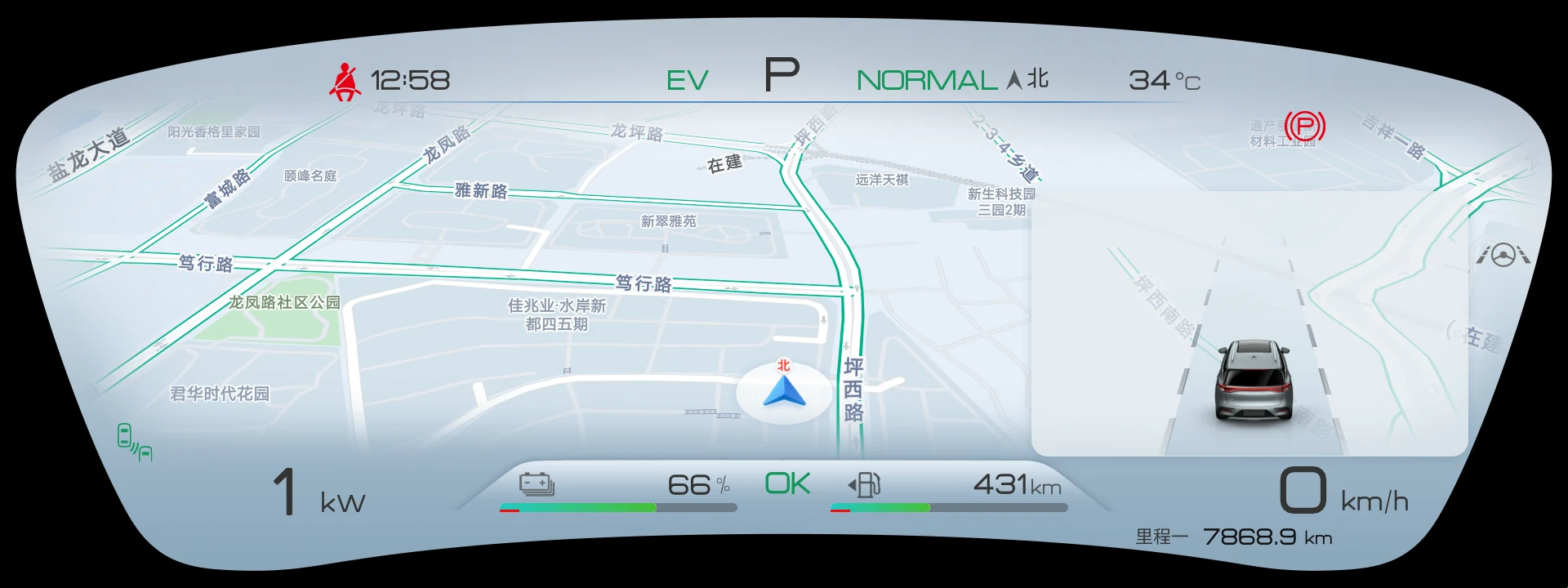
You must open Amap’s cluster casting once before first use

After that it stays enabled; you do not need to repeat it. By default, the BYD cluster shows the car’s own driving information. For a third-party view to appear there, you must open Cast to Cluster once in Amap. This is a head-unit restriction we cannot bypass — without it, nothing will appear on the cluster. It is not broken.

The instrument cluster with no casting, showing only Amap
The cluster before casting is enabled — Amap only

Recordings and playback

Playback is the raw recording, not a re-stitch

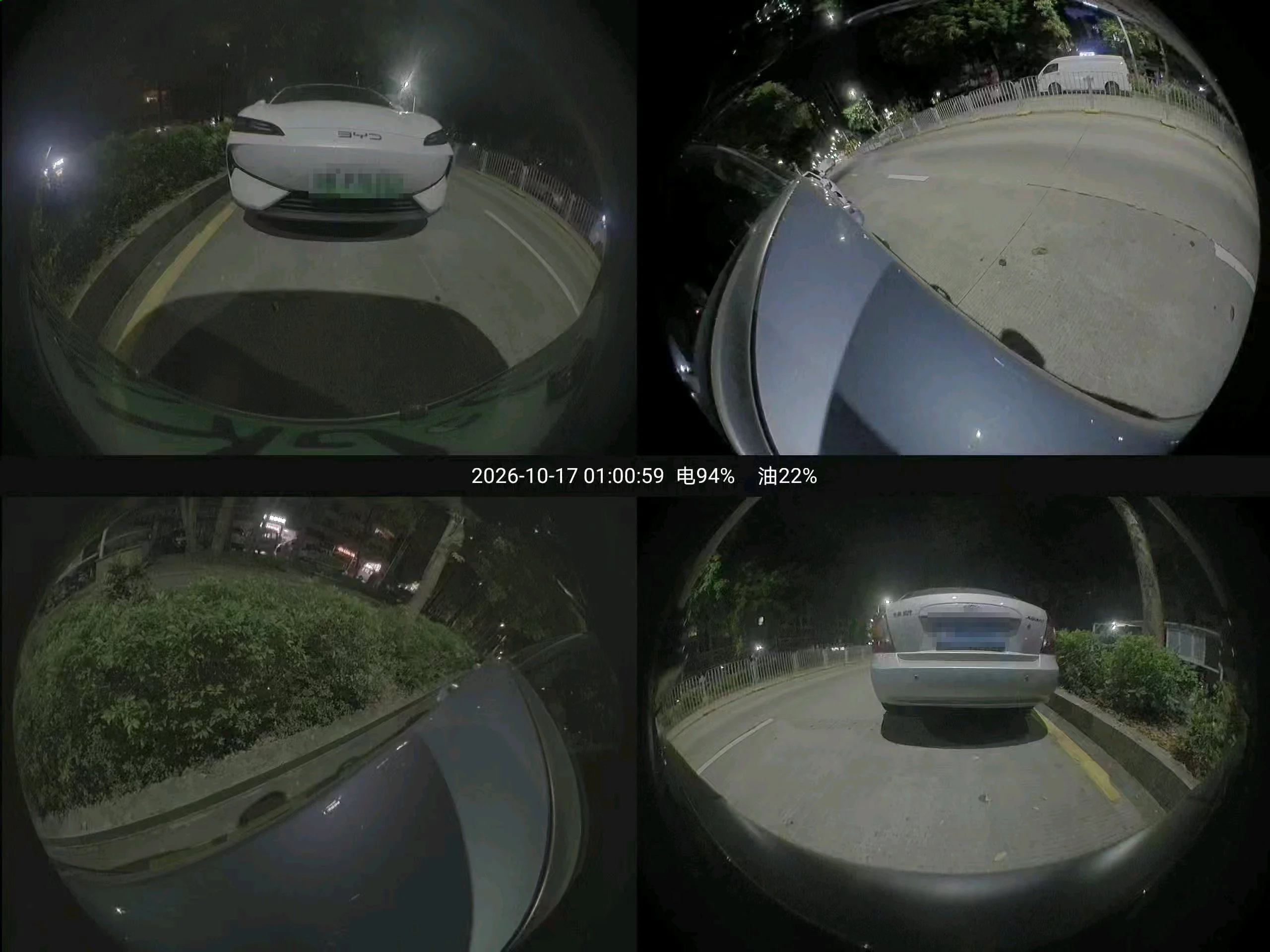
Open a clip and you see the frame that was recorded: four fisheye views with the timestamp and vehicle status burned in. Drag the progress bar to scrub; clips with triggers are marked in the list.
A frame from a recording file: four fisheye views composited into one 2560×1920 raw frame
A frame from a recording file (exported) — four fisheye views and vehicle status, as recorded
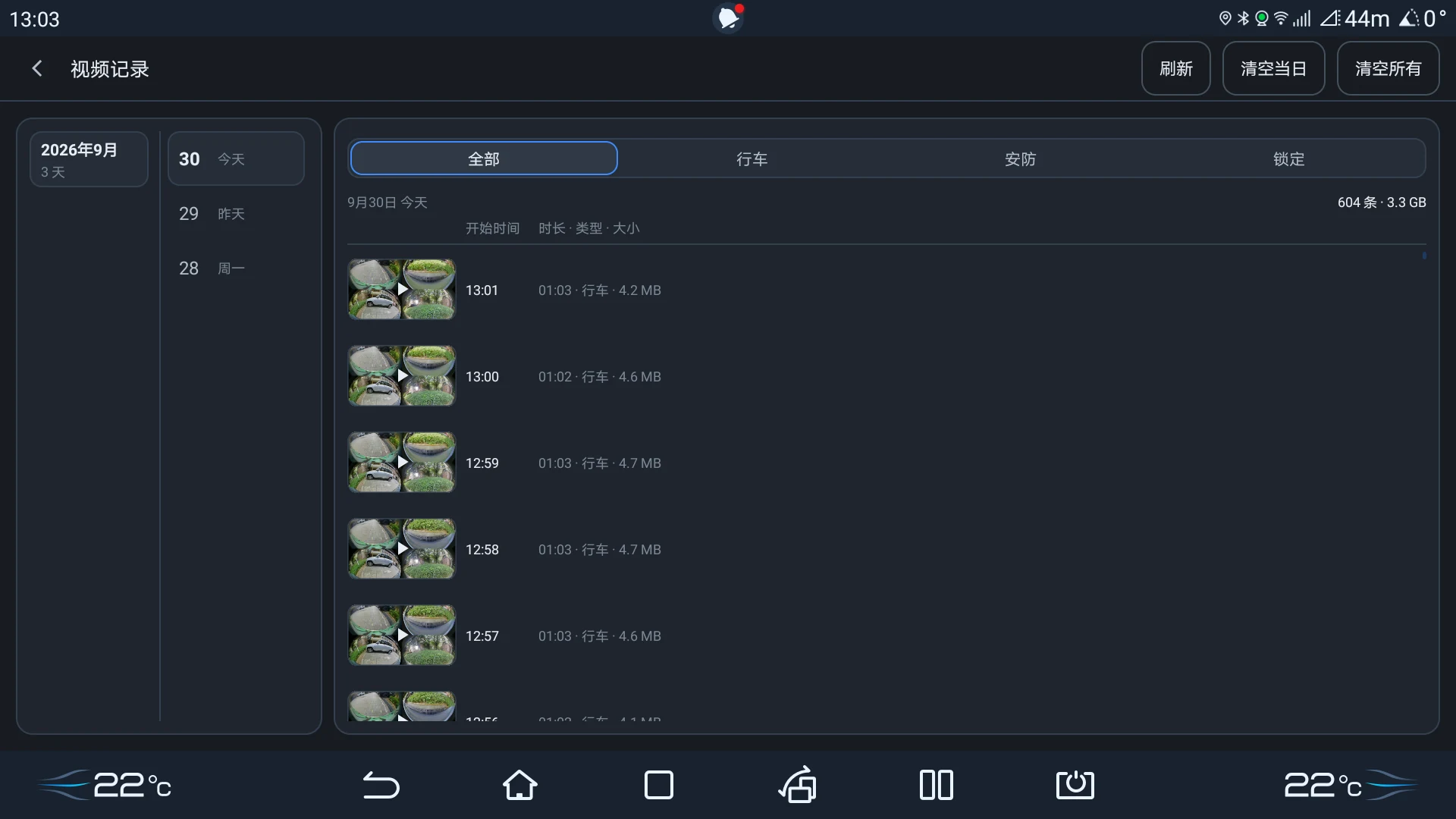
Recording list with dates on the left, type and storage filters at the top, and a four-channel thumbnail per row

Total shown at the top right of today's list

604 clips · 3.3 GB

The left column lists only days with recordings — Today / Yesterday / Monday

AllDriveParkingLocked

Filter by type and by storage at the top: internal / TF card / USB drive.

In the Parking category, turn on the “AI-reviewed only” filter to keep just the clips that Event AI Check has reviewed.

Clips with a trigger are marked “Triggered”, so you do not have to scan from the beginning.

About “Locked”

Loop recording overwrites the oldest clips. Locked clips are the exception — they are not overwritten. The worst outcome is looking for a clip and finding it already gone, so lock the ones that matter.

Setup and upkeep

The parts you should never have to think about

Open the Permissions page: every requirement — and every non-requirement — is explained there.

Start on boot

The head unit’s auto-start list is a blocklist: checked apps are prevented from starting. Zhadi must stay unchecked.

Background survival

The head unit puts auto-start and background start on the same list, so both buttons lead to the same page.

Wireless debugging (ADB)

Starting the daemon without root and granting it its own permissions both rely on this one path. It is enabled in the head unit’s own settings, not inside the app.

Basics / Head-unit access / Optional

Basics

  • Camera
  • Storage / files
  • Network

    Update checks, optional log upload / remote debugging, and AI model downloads

  • Notifications

    Not needed. This head unit runs Android 10; notification permission only became required in Android 13

Head-unit access

  • Wireless debugging (ADB)
  • Self-elevation
  • Battery optimization allowlist
  • Display over other apps

Optional

  • Bluetooth

    Used when the phone controller connects to the head unit

  • Location

    Only required by the system for Bluetooth scanning on Android 11 and below; location is never read, stored, or uploaded

The table lists only the permissions that affect how owners understand the app; the full list is on the app’s Permissions page and in the Privacy Policy.

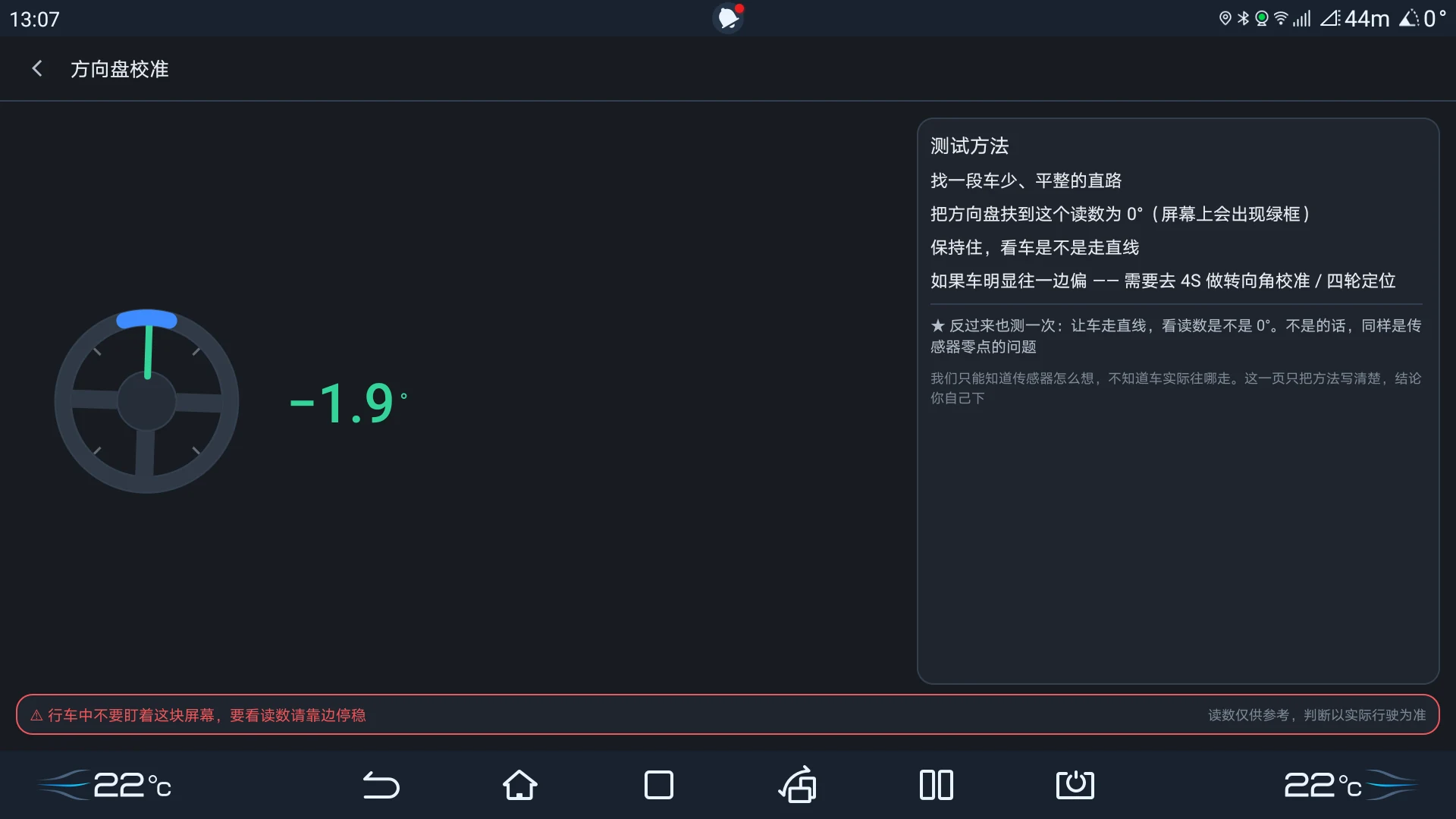
Steering angle check · A small self-test

This page is not a selling point; it is how we build. It gives one live angle reading and explains the method: find a flat, quiet straight road, hold the wheel until the reading is 0° (a green box appears), and see whether the car tracks straight. Then test the other way: drive straight and check whether the reading is 0°.

We can only know what the sensor reports, not where the car actually goes. This page explains the method; you draw the conclusion.

⚠ Do not stare at this screen while driving. Pull over safely to read it.

Steering angle check page with a live angle reading and the full verification method

Straight talk, up front

Current limits and what comes next

This is not an apology; it is disclosure. Finding out after you install is worse.
01

Supported models

Fully verified only on the BYD Tang EV (DiLink 4.0 head unit / Android 10). Other models and other head-unit versions have not been tested.

We have not tested other models, so we cannot promise they will work.

02

Parking Guard and the 12V battery

This is a battery-electric car. While parked, the 12V battery only discharges and does not charge; long parking sessions with Parking Guard will draw it down.

For long parking, keep only zone-triggered recording, or switch Parking Guard off entirely.

03

Cluster casting needs one Amap step

This is a BYD head-unit restriction we cannot bypass. Open Cast to Cluster once in Amap; it stays enabled afterwards.

Without this step nothing appears on the cluster — it is not broken.

04

Scope of this release

The focus is recording and review. Remote viewing and cloud storage are not in this release.

Recordings stay on the head unit or on the external drive you choose.

05

Limits of Event AI Check

It only runs after a zone triggers, reviewing five seconds either side on that channel. No trigger means no review, and it can miss or misclassify.

It is extra context, not a replacement for security, and not 24/7 AI monitoring.

Compatibility, downloads, and full setup steps are in the manual.

Read the manual